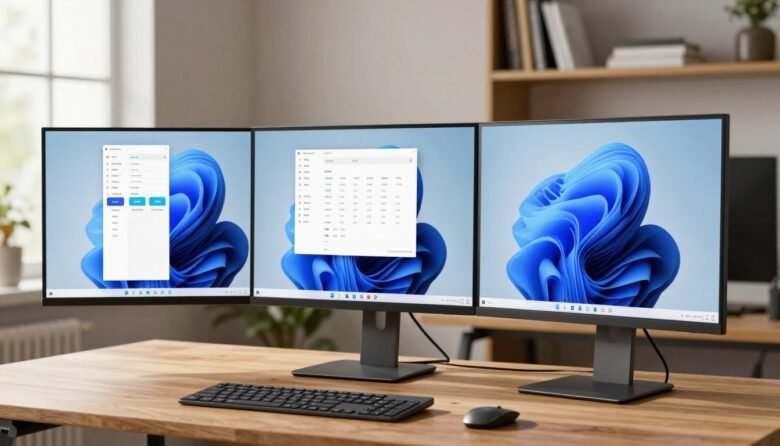
The split screen feature lets you arrange multiple windows so you can work faster without jumping between apps. You place one active window, pick another, and Snap Assist suggests what fits the empty space.
You’ll get three practical options you can use right away: drag a window to an edge, use Snap Layouts from the maximize button, or press keyboard shortcuts. Each method ends with Snap Assist displaying thumbnails of other open windows for a quick fill.
Common layouts you can choose include two side-by-side panes or four cornered windows for heavy multitasking. You can compare a document and a browser, copy text between apps, or keep reference material visible while you work.
Settings affect what suggestions appear and where snapped windows land; later sections show exactly where to toggle those controls. Once you learn the shortcuts, arranging your screen takes very little time.
Split Screen on Windows 11: What Snap and Snap Assist Do for Your Multitasking
Snap and Snap Assist make arranging open windows quick and visual, so you spend less time switching apps. When you drag a window to an edge, it resizes into a neat half. Drag toward a corner and it fits into a quarter of your screen.
Before you release the mouse, a shaded placement guide shows exactly where the window will land. That preview removes guesswork and keeps layouts tidy.
Visual layouts and choices
Use side-by-side halves for two main apps, such as a document and a browser. Quarter placements work well when you monitor several windows at once—chat, calendar, notes, and email.
- Drag left or right to create a half screen.
- Drag into a corner for a four-up grid.
- After the first window snaps, Snap Assist shows thumbnails of your other open windows so you can click one to fill the space.
These options save time on a single monitor and increase productivity during multitasking. Next, you’ll see exact mouse moves, then Snap Layouts, and finally keyboard controls.
How to Split Screen on Windows 11 Step by Step Using Your Mouse
Using your mouse, you can snap windows into neat layouts with a few simple moves.
Start by clicking and holding the title bar of the active window. Drag the window toward the left or right edge until a gray preview appears, then release to lock the window into a half-and-half layout.
Snap a window side by side by dragging to the left or right edge
Drag window to the left if you want a left-focused layout, or pull it to the right for the right half. The other side stays available so you can pick a second application quickly.
Split your screen into quarters by dragging a window into a corner
For four-up layouts, drag the window into any corner until the preview shows a quarter placement, then release. Repeat with other windows to fill each quadrant.
Fill the remaining space by selecting from the thumbnail previews
After the first snap, Snap Assist shows thumbnail previews of other open windows. Click a thumbnail to fill the remaining position without hunting on the taskbar.
- Repeat thumbnail selection for third and fourth positions in multi-window layouts.
- Try email and calendar side side, or use quarters for notes, agenda, browser, and chat during a meeting.
If you don’t see the gray preview, drag closer to the edge or corner, or confirm Snap is enabled in settings. If dragging feels slow, Snap Layouts offers one-click placement for quick split screen setups.
Use Snap Layouts for Faster Splitting Without Dragging
Use a visual picker at the maximize button for faster window arrangement. Snap layouts give you ready-made grid choices so you pick a placement instead of dragging a window across the screen.
Open the layout picker from the maximize button and choose a zone
Move your cursor over an active window’s maximize control. A small grid appears with several layout options.
Click the zone you want and the active window will snap into that place. Snap Assist then shows thumbnails to fill the remaining areas.
Pick other applications from the Snap Assist thumbnails
After selecting a layout, click thumbnails to place the next application in each zone. Repeat until the layout is filled.
- Common layouts include two columns, four quarters, and uneven ratios like two-thirds/one-third.
- Tip: choose the layout first, then give the largest panel to your main application, such as a spreadsheet.
- If the picker does not appear, enable “Show snap layouts when I hover over a window’s maximize button” under Settings → System → Multitasking → Snap windows.
Example workflow: put a browser in the large panel, a notes application in a smaller slot, and keep a messaging app visible. Snap layouts are the fastest no-drag method; next, try keyboard shortcuts for even quicker control.
Split Screen with Keyboard Shortcuts Using the Windows Key and Arrow Keys
Keep your hands on the keyboard and snap active apps into place instantly. Keyboard snapping is the fastest way to arrange windows when you want speed and precision without the mouse.
Core moves:
- Press the windows key + Left Arrow to put the active window on the left half.
- Press the windows key + Right Arrow to place it on the right half.
Corner layouts:
Snap left or right first, then add the windows key + Up Arrow or windows key + Down Arrow to move that window into a corner quarter. Use the same key arrow combo again to change corner position.
Resize and restore:
Use windows key + Up Arrow until the window returns to full screen. Use windows key + Down Arrow to shrink a full window back to a half or quarter.
Choose the next app:
After snapping, Snap Assist shows thumbnails. Use the arrow keys to pick one and press Enter. You can also hold Alt and tap Tab to cycle open windows and switch quickly.
Example: snap your browser left, pick Word on the right via thumbnails, then use Alt + Tab to jump between them. Make sure the app you want is active before using these shortcuts for the smoothest workflow.
Resize, Refine, and Fix Split Screen Settings in Windows 11
Fine-tuning window sizes and layout toggles lets you get faster results and less clutter while you work.
The quickest resize trick is simple. Hover over the divider between snapped panels until a double-headed arrow appears. Drag that handle left or right to rebalance space. The neighboring window adjusts automatically so nothing overlaps and your layout stays tidy.
Open the right settings path
If Snap layouts are missing, open Settings → System → Multitasking → Snap windows. Review the available toggles there.
Useful toggles and what they do
- Show layouts when hovering the maximize button — displays the layout picker.
- Show layouts when dragging to the top — offers placement previews while you drag.
- Suggest what to snap next — controls whether thumbnails appear after a snap.
Where snapped apps appear and a quick checklist
Snapped groups show up in Task View and when you press Alt + Tab. That keeps workspaces easy to switch between.
If snapping is inconsistent: confirm Snap windows is enabled, enable the hover/drag options, then test again. These tweaks save time each day by matching the layout behavior with how you work.
Make Split Screen Your Default Workflow for Everyday Windows 11 Tasks
Make organized layouts your daily habit and cut the time you spend hunting for open windows. Choose the way that fits your rhythm: mouse snapping for simple moves, Snap Layouts for visual choices, or keyboard shortcuts when you need speed.
Try practical recipes: browser and document side by side for research, or a three-application view with email, calendar, and notes during planning. Start by snapping your main window first, then pick the next application from Snap Assist so everything is ready before you begin.
Adjust sizes after you place panels so the most important window gets more space. Use Alt + Tab to jump between related apps without breaking focus. Remember: two panes may be all you need. Pick one method today and use it for a full work session—your workflow will feel easier and faster.

Ava Kensington is a tech writer who believes technology should make life easier, not more complicated. She created MoodTechs to help everyday users get the most out of their devices with clear, step-by-step guides — no jargon, no fluff. From fixing a stubborn printer to locking down your privacy settings, Ava breaks it down so anyone can follow along.