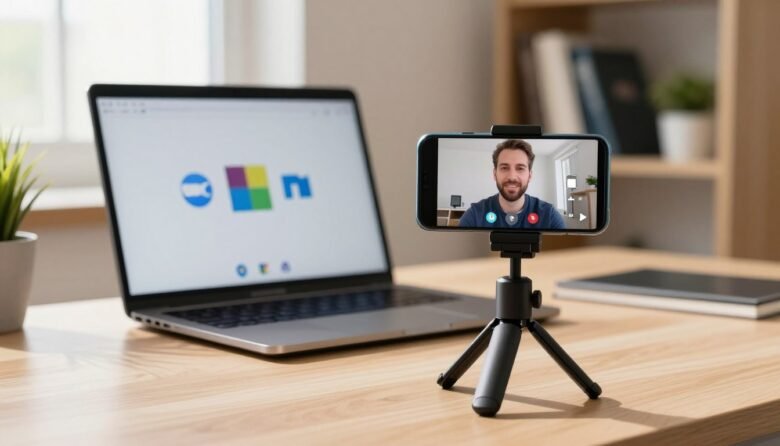
You can follow a clear path to get sharper video on calls without buying new gear. Read this guide on how to use phone as webcam for PC meetings and pick the fastest free setup for your gear.
In plain terms, your phone’s camera becomes the webcam source your computer and meeting apps select. That gives you the high-quality camera on the device and the full screen on your computer for sharing slides or notes.
This guide previews three routes: Pixel Android 14 USB Webcam mode, Windows 11 connected camera with Link to Windows, and DroidCam as a universal fallback. Each path is free or has a free option so you can choose by device and speed.
The focus here is quick video setup and choosing the new webcam source. It does not cover studio lighting, advanced capture hardware, or DSLR workflows.
This is aimed at remote workers, students, and anyone with an older laptop camera or a desktop without one. You’ll still use your computer for screen sharing and notes while the phone handles the camera feed.
Why using your phone webcam can instantly upgrade your PC meeting video quality
Bringing a better camera into your desktop setup often delivers a clear jump in on-screen presence. A recent phone camera can outclass many built-in laptop modules and older webcams right away.
Sharper image than many built-in laptop cameras and older standalone webcams
Modern sensors and stronger image processing give sharper detail and truer colors. Devices released in the last few years often beat legacy models like the Logitech C920 in low light and clarity.
Better camera angles with a stand or tripod
Mounting your device on a small tripod lifts the lens to eye level. That fixes the unflattering low angle that comes from a closed laptop and improves framing while you type.
Best-of-both-worlds setup: great phone camera quality with a full computer screen for screen sharing
Using your phone webcam lets your computer keep the full screen for slides, chat, and notes. You get superior video while staying comfortable at your desk.
- Sharper image and better processing yield a more professional look on video calls.
- Eye-level framing removes distracting angles and keeps your hands free for typing.
- Budget-friendly: if you already own a capable smartphone, this upgrade costs nothing extra.
Plan for battery drain and a short setup step; those trade-offs are easy to avoid with a charger and a quick test run. Overall, using phone webcam gives an immediate quality boost without new hardware.
What you’ll need before you connect phone to computer for video calls
Before you start, gather the items that make a stable, reliable video connection. A little prep saves time and avoids last‑minute problems.
Phone, computer, and the right connection option
You’ll need your smartphone, your PC or laptop, and a compatible connection. Choose USB cable for the most stable, low‑latency feed. Choose Wi‑Fi for convenience if slight delay is okay.
Charging and battery basics
Running the camera drains power quickly. Keep a charger handy and leave the device plugged in during longer calls to prevent dropouts.
- Native options (Pixel USB webcam mode, Windows 11 connected camera) are faster to set up.
- App‑based methods work across many devices but may need extra setup time.
- Use a reliable usb cable and a stable network to avoid jitter and frame drops.
- Mount the device on a stand or small tripod for steady framing during streaming.
Quick environment checks: clean the lens, check lighting, and place the device on a stable surface. Finish with this readiness checklist before installing anything:
- Phone charged and plugged in.
- USB cable that connects securely, or Wi‑Fi on the same network.
- Phone and computer recognized by each other (driver or app if needed).
How to use phone as webcam for PC meetings with Android, iPhone, and Windows 11 options
Choose the path that matches your devices and skills. Below are fast native methods and a universal app option so you can start streaming with minimal fuss.
Pixel USB webcam mode (no extra app)
If you have a Pixel on Android 14 (Pixel 6, 6 Pro, 6a, 7, 7 Pro, 7a, 8, 8 Pro, 8a), plug a USB‑C cable into your computer. Pull down the system notification, tap “Charging this device via USB,” switch “Use USB for” to Webcam, then pick “Android Webcam” in your meeting software. Open the notification shade for a preview, camera swap, and quick zoom control.
- Windows 11 connected camera: Install Link to Windows, sign in with your Microsoft account on both devices, enable Mobile devices and “Use as a connected camera,” and accept camera permissions on the handset.
- DroidCam (universal): Works with Android and iOS plus Windows/Linux clients. Free mode is SD; DroidCamX Pro unlocks 720p/1080p and extra controls like autofocus and brightness.
- Connection choice: USB gives lower latency; Wi‑Fi is easier but may add jitter.
Tip: switch front/rear cameras, rotate or flip if orientation is wrong, and use light/autofocus settings for a sharper image. If the feed fails, confirm app and system versions, restart the client, or toggle any Enabled switch. A solid cable or stable Wi‑Fi improves results fast.
Select your phone camera as the webcam in Zoom, Google Meet, and Microsoft Teams
Picking the right camera option in your application ensures your video looks crisp on every call. Most apps will list Android Webcam, DroidCam, or a Windows connected camera as a selectable video source.
Choosing the new camera source in your meeting app
Open video settings in Zoom, Google Meet (browser or app), or Teams. In Zoom go to Settings > Video and pick Android Webcam or DroidCam from the Camera menu. In Google Meet click the three dots > Settings > Video and select the same entry. In Teams open Device settings and choose the connected camera entry.
Quick test run and final checks
Before an important meeting, run a short test. Preview video, check framing and exposure, and confirm the camera and microphone devices. Start a one-minute test meeting or use each app’s preview function.
- If the laptop camera appears, reopen settings and reselect the camera or restart the application.
- Keep the same USB port, cable, or Wi‑Fi network for consistency.
- Do a final check: lighting, angle, and a clean lens so the upgraded camera really shines on Zoom, Google Meet, and Teams.
Conclusion
With a few simple choices you can get noticeably better video without extra hardware costs.
Your phone can replace a basic webcam and lift image quality while your computer keeps the full screen for slides and notes.
Pick the fastest path that fits your gear: Pixel Android 14 USB feature for the quickest setup, Windows 11 connected camera if you’re in the Microsoft ecosystem, or DroidCam as the flexible fallback option.
Two reliability rules prevent most issues: prefer a stable USB connection and keep the device charging so battery drain won’t interrupt a call. Do a short test run to confirm client selection, framing, and audio.
Next step: choose your option, mount the device at eye level on a tripod or stand, verify the selected camera in Zoom/Google Meet/Teams, and keep your cable and settings consistent for repeatable quality when streaming.

Ava Kensington is a tech writer who believes technology should make life easier, not more complicated. She created MoodTechs to help everyday users get the most out of their devices with clear, step-by-step guides — no jargon, no fluff. From fixing a stubborn printer to locking down your privacy settings, Ava breaks it down so anyone can follow along.