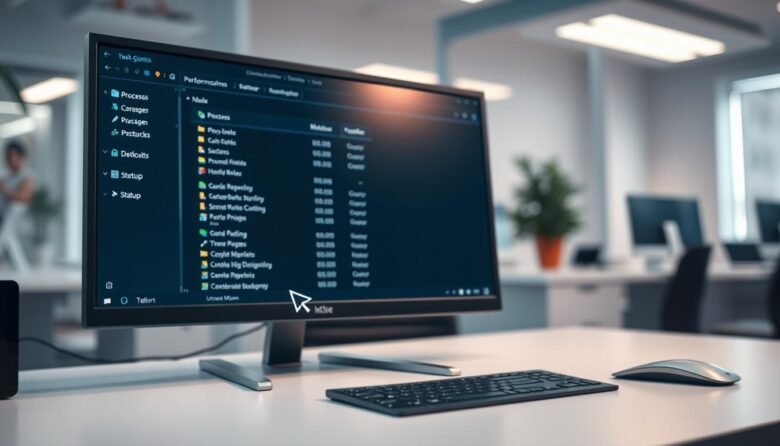
The Windows Task Manager is a built-in utility in Windows 10 and Windows 11 that gives live insight into CPU, memory, disk, network, and GPU use. It shows detailed statistics for each process so you can spot what slows your system and act fast.
The simple view helps you close a frozen app in seconds. The full tabbed interface—Processes, Performance, App history, Startup, Users, Details, Services—lets you sort, filter, and take action on tasks. Use shortcuts like Ctrl+Shift+Esc or Ctrl+Alt+Delete to open it quickly.
This section frames a friendly playbook: learn how to find CPU or memory hogs, end stubborn programs safely, check GPU load during creative work, and spot network-active processes. You’ll also learn how color-coded columns and sorting surface top consumers, and how commands like Always on top and Run new task as admin speed troubleshooting.
Key Takeaways
- Quick access: multiple ways to open the tool on modern Windows.
- Simple view is for fast fixes; full view reveals deeper information.
- Use sorting and color cues to spot resource spikes instantly.
- Learn which items are safe to end: Apps vs Background vs Windows processes.
- Tray and menu commands help monitor and recover a sluggish desktop.
What the Windows Task Manager Does and Why It Matters Today
A central diagnostics view in Windows reports total and per‑process CPU, memory, disk, network, and GPU use so you can act fast. This is the first stop when apps freeze, boot times drag, or performance dips.
The interface groups information into tabs—Processes, Performance, App history, Startup, Users, Details, and Services—so you get both summary graphs and per‑process facts. Use these features to spot which programs hog resources and to see publisher or command line context before you make changes.
Why it matters today: modern browsers and apps spawn many processes. Visible, sortable columns and color cues point you to heavy resource consumers without digging through settings. Right‑click actions let you end, restart, or open a file location safely.
This tool also complements deeper utilities like Resource Monitor. For routine work, prefer restarting Explorer instead of killing core Windows processes, and avoid terminating unknown system items unless you confirm what they do.
How to Open Task Manager on Windows 10 and 11
When apps slow down, knowing how to open the task manager gives you immediate control. Use the fastest methods below to reach running processes and resource graphs in seconds.
Keyboard shortcuts
Ctrl+Shift+Esc opens the tool instantly, even if the mouse is unresponsive or you’re in full-screen mode.
If the desktop is frozen, press Ctrl+Alt+Delete and select Task Manager from the secure options screen for a reliable way in.
Taskbar and Start menu methods
Right‑click the taskbar and pick Task Manager when you prefer a mouse-driven path.
Or open Start, type “Task Manager,” and press Enter for a search-based way to open task features.
Keep it visible and use the tray
Under Options, enable Always on top so the window stays visible while you switch apps.
Turn on Hide when minimized to keep a CPU meter in the system tray without cluttering the taskbar.
You can also expand to More details once, and it will reopen that view next time for faster access.
Simple View vs. More Details: Navigating the Interface
Use the simple view to see only open apps and act fast when a window freezes. The pared-down display shows a short list of foreground programs and a clear way to end them without hunting through tabs.
End Task safely from the simple view
Start in the compact panel to quickly end task on a frozen app. Select the app and choose End task to close it when the normal close button fails.
Right-click options you’ll use every day
Right‑click a listed app for useful options: Switch to to focus the window, Open file location to find the executable, Search online to identify unknown software, and Properties for version details.
Use Run new task to launch programs, folders, or URLs when the Start menu misbehaves. Toggle Always on top from the context menu to keep the panel visible while you watch changes.
Click More details to expand into the full set of tabs and see all processes, grouping, and deeper metrics. Keep the tray CPU meter visible with Hide when minimized so you can monitor activity without cluttering the taskbar.
Mastering the Processes Tab for Real-Time Control
The Processes tab gives a live view of running entries so you can find what’s using your CPU, memory, disk, network, or GPU and act quickly.
Grouping splits items into Apps, Background processes, and Windows processes. This helps you tell everyday programs from system-critical items before deciding to close or investigate anything.
Sorting and color cues show top offenders at a glance. Sort by CPU, memory, disk, network, or GPU to surface heavy hitters. Darker orange or red means higher usage so you can spot spikes fast.
Right‑click actions provide quick fixes: End task for misbehaving apps, Restart (for Explorer) to recover the desktop, Go to details for deeper control, and Create dump file for developer analysis. You can also Open file location or Search online to verify an executable before you act.
Column customization lets you add PID, Publisher, Command line, Power usage, and Power usage trend so the names and origins of processes are clear. Switch resource values between percent and precise units (MB, MB/s, Mbps) depending on whether you need a quick comparison or exact figures.
Use these options to expand or collapse grouped entries and focus on the actual sub‑process causing a spike. Avoid ending unknown windows processes; prefer nonessential background items or recognizable programs when troubleshooting.
Deep Dive into the Performance Tab: CPU, Memory, Disk, Network, GPU
Peek at 60‑second rolling charts in the performance tab to see how hardware handles current work. The panel shows short graphs for CPU, memory, disks, network adapters, and GPUs so you get quick visual feedback.
CPU insights
The CPU pane lists processor model, core and thread count, current speed, hardware virtualization support, and system uptime. Use this to interpret spikes during heavy program use and to spot sustained high CPU usage.
Memory breakdown
The memory view shows total RAM, RAM speed, and how many slots are populated. It also reports cached “standby” data that Windows can reuse immediately to reduce load.
Disk and network panels
Disk panels list drive model and live read/write throughput so you can compare actual speeds to expected specs. The network pane names each adapter and shows IPv4/IPv6 addresses; Wi‑Fi also reports the wireless standard (for example, 802.11ac).
GPU and deeper analysis
GPU graphs include multiple engine views (3D, encode/decode) and GPU memory usage to track creative or gaming workloads. Double‑click any graph to open a floating Graph Summary View and keep it always on top.
When the high-level charts don’t show which program causes load, click the menu link to Open Resource Monitor for per‑process disk, memory, and network details. Adjust update speed or pause to save battery while you monitor performance.
App History Explained: When Historical Usage Data Helps
App History records CPU time and network activity for Universal Windows Platform apps so you can track behavior across a chosen time window.
Open the tab to see totals since the displayed collection start date. That start date tells you the time span behind every total and lets you reset for clean tests.
What you can add and why it matters
Right‑click any header to add columns like Metered network, Non‑metered network, Downloads, Uploads, and Tile updates. These fields show which apps use the most data and when.
Use this information to spot chatty programs, manage limited plans, or reduce background sync that drains battery. App History helps decide which Store apps to remove or limit.
Limitations: this view covers UWP apps only. Pair App History with the Processes view for a complete picture of system consumption on your windows task environment.
Startup Tab: Speed Up Boot by Managing Startup Impact
Review the Startup tab to see which programs run when you sign in and how they affect boot time. The panel lists Status, Startup impact (Low to High), Startup type (Registry or Folder), Disk I/O at startup (MB), CPU at startup (ms), and more.
Disable nonessential entries to shorten sign-in and reduce early-session CPU and disk contention. Start with entries marked High impact—these usually deliver the biggest gains.
Sort the list by Disk I/O at startup or CPU at startup to find heavy hitters that work hard right after sign-in. Check Last BIOS time to see how firmware added to the recent boot sequence.
Confirm Publisher and Command line to verify legitimacy and locate the exact executable behind each program. Monitor Running now and Disabled time to track what’s active and when you changed it.
Quick options: use Startup type to trace origin (Registry vs Folder) before removing items completely. Small, deliberate cuts here often speed the system more than hardware tweaks.
Users Tab: See Who’s Using System Resources
Each user session displays live CPU, memory, disk, and network use so you can find who consumes system resources.
The Users tab lists every signed‑in account, including disconnected sessions. Expand a user to view the apps and processes running under that account. This helps explain unexpected background load on shared Windows PCs.
Disconnecting or signing off sessions to reclaim resources
Right‑click a user to Disconnect an idle session or Sign off to close apps and free memory and CPU immediately. Disconnected sessions can linger and quietly run tasks that drain the system.
- See all signed‑in accounts and their CPU, memory, disk, and network use at a glance.
- Expand users to inspect the specific process or app causing pressure.
- Disconnect idle sessions to keep data but free active threads.
- Sign off to fully close apps and reclaim resources fast.
- Use this view with the Processes tab to decide which tasks are safe to end per user.
Details Tab Power Moves for Advanced Users
Advanced troubleshooting starts in the Details tab, where individual processes reveal scheduling and core settings.
Set priority alters how the system schedules CPU time for a process. Use it to favor time‑sensitive programs or reduce background noise so your active app gets priority.
Set affinity binds a process to specific CPU cores on multi‑core systems. This can stabilize heavy workloads or isolate troublesome behavior to a subset of cores.
Run Analyze wait chain when a program hangs to see whether it’s blocked by another process or thread. That insight often points to the real culprit without blind killing.
Prefer End process tree to stop a parent and all children at once. Add columns like PID, User name, and Status so your list shows the exact data you need.
Switch resource value formats (MB vs percent) for clearer memory and CPU numbers. Cross‑reference items with Go to services or Go to process to jump into the right context.
Use these options sparingly, since changing priority or killing critical processes can harm system stability.
Services Tab: Start, Stop, and Restart with Care
This view shows system-level services that don’t appear as apps but can cause CPU, memory, or network activity when misconfigured.
Browse compact service listings to see background items that underpin Windows and installed programs. Many run without a user interface, so this pane helps you spot silent resource drains.
Quick actions: right‑click any entry to Start, Stop, or Restart a service. Restarting a single service can fix stuck updates or an unresponsive program without rebooting the system.
Linking to the Services console and safe service management
Click Open Services to launch services.msc for full options like startup type, dependencies, and recovery behavior. Use that console to learn what a service does before changing it.
Correlate services with a related process to identify which background item causes unexpected CPU or network use. Exercise caution: many services are vital to core features, so only change items you understand.
Task Manager Menu Essentials That Boost Workflow
Using the built-in menu wisely helps you start programs with elevated rights and tune display behavior for clearer monitoring. These menu entries are small but they change how you interact with processes and system performance.
File > Run new task with admin privileges
File > Run new task launches programs, folders, or network resources when the shell is unresponsive.
Check “Create this task with administrative privileges” to elevate a program instantly, or start explorer.exe or cmd to restore a broken desktop.
Options: visibility and tray behavior
Enable Always on top so the window stays visible while you test or switch apps.
Turn on Hide when minimized to keep a lightweight CPU meter in the tray.
Use Minimize on use if you want the menu to step aside automatically after you focus another program.
View controls for pacing and clarity
Use Refresh now for an immediate snapshot.
Adjust Update speed to High for rapid feedback or Low/Paused to conserve battery.
Toggle Group by type to switch between categorized and flat lists, and use Expand all or Collapse all to study multi-process programs or isolate a single noisy process.
Your Next Steps to Confident Task Management
Use clear column sorts and color cues to find which processes demand the most CPU or memory. Open the task manager interface, sort by CPU or memory, and watch color highlights to spot heavy consumers fast.
Disable high-impact startup entries to cut boot time and confirm publisher and command line name before you remove anything. Use the Performance tab as a quick dashboard for CPU, memory, disk, network, and GPU trends.
When you need deeper detail, open Resource Monitor or inspect the Details and Services tabs cautiously. Change priority sparingly and research any background processes before you end them.
Keep the window Always on top while testing and set Update speed to balance responsiveness and battery life. Repeat this workflow: check processes, verify with performance data, tune startup, then adjust advanced settings only when needed.