Save time every day by putting your most-used folders, files, and commands within reach. This short guide explains how File Explorer surfaces frequent folders and recent files so you can return to work without hunting through deep paths. The Quick Access Toolbar can sit above or below the Ribbon, and you can move it via …
Want your PC to feel snappier? This guide shows simple ways to cut clicks and clutter so everyday work flows faster. Small changes—like rearranging the taskbar, pinning key apps, and using Snap Layouts—make the desktop feel more responsive without hardware upgrades. Windows 11 adds features that help. File Explorer tabs reduce window hopping. Focus Sessions …
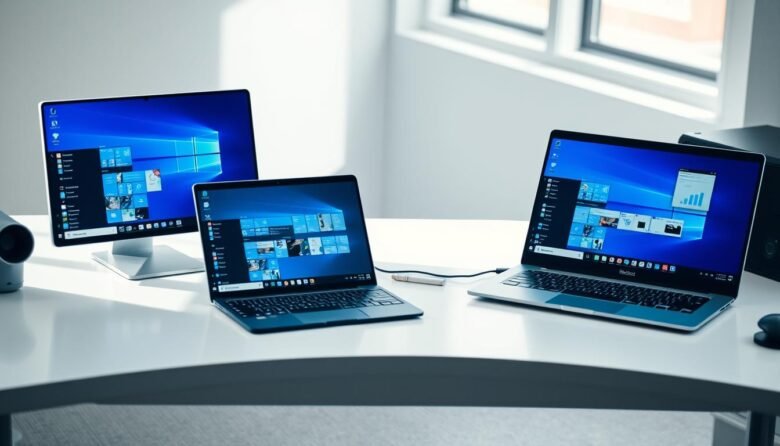
Get ready to boost productivity with a simple method to arrange apps across your display. This short guide shows how to use Snap by dragging a window to the edge or by pressing the Windows key + Arrow keys. After you place the first app, Snap Assist offers thumbnails to fill the remaining space fast. …

Most people copy and paste one item at a time. The built‑in paste buffer upgrades that. It stores many recent entries so you can reuse text, HTML, and small images without switching apps. Press Windows + V to open the panel and pick what to paste. If you see a prompt instead of a list, …

Save time and work smarter. A few lesser-known keystrokes can change how you use your PC every day. These practical, built‑in combos are easy to learn and give immediate payoff. They cover navigation, screenshots, snapping, taskbar control, and accessibility in a compact list. Think of “hidden” here as simply overlooked features. Simple key presses like …