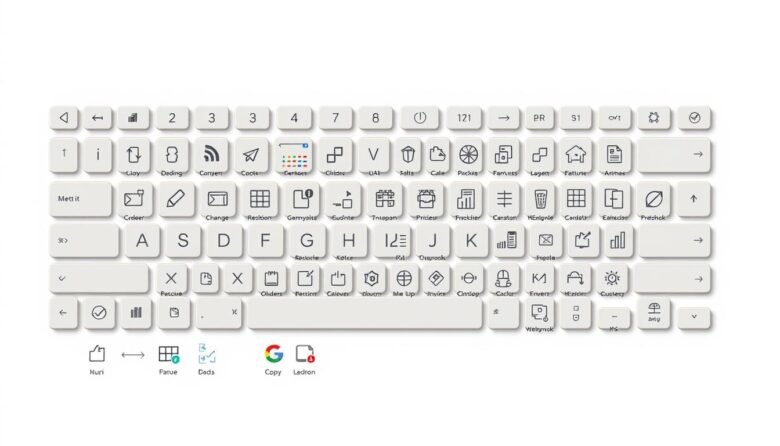
Speed up daily work by learning a few key combinations that cut clicks and clear menu hunting. Simple commands like Ctrl+C and Ctrl+V work across apps, while Win+D, Win+L and Win+E help you manage the desktop instantly.
You’ll see when to use system-wide commands versus app-specific actions in Word, Excel, and your browser. We cover switching between apps, focusing the active window, and capturing the screen with Alt+PrtScn or Win+Shift+S.
Browser moves such as Ctrl+L, Ctrl+Tab, and Ctrl+Shift+T speed navigation between pages and tabs. Text-edit tricks using ctrl, alt, and shift keys make selecting and moving the cursor faster so you avoid lost work and wasted time.
Key Takeaways
- Use system-wide commands (Ctrl+C/Ctrl+V/Ctrl+Z) to save clicks across apps.
- Leverage the windows key for desktop control: Win+D, Win+L, Win+E.
- Switch tabs and reopen closed pages with Ctrl+Tab and Ctrl+Shift+T.
- Capture full or partial screens quickly with Alt+PrtScn and Win+Shift+S.
- Master text movement with ctrl, alt, and shift to edit faster and protect the clipboard.
What this Ultimate Guide covers and how to use it today
This section maps the practical moves you can use right now. You’ll find clear examples for common actions and quick wins that reduce clicks and speed tasks.
Who this is for: everyday users to power users
This resource fits anyone in the United States who wants to work faster, from casual web users to power users managing many apps.
Simple commands work on most machines and require no extra tools.
How much time you’ll save with common keyboard workflows
Core workflows like Ctrl+A/C/X/V to move text, Ctrl+S to save, and Ctrl+N to open a new window cut repeated clicks into a single action.
Using the windows key for Win+D, Win+E, and Win+L speeds navigation and secures your desktop fast.
We quantify savings by comparing multi-click menus to single-key combos. Try a few commands today, keep a short list nearby, and watch small time gains add up across your day.
Keyboard shortcuts guide
Some key presses work everywhere in Windows, while others only change behavior inside a single program. This section explains how to tell system-level commands from app-specific actions so you get predictable results.
System-wide commands like Ctrl+C, Ctrl+V, Ctrl+Z, and Ctrl+F run across apps in Windows. They copy, paste, undo, and find text whether you are in a browser, a document, or an email client.
App-specific actions give deeper control inside programs. Word uses alignment keys and Ctrl+K for links; Excel offers F2 to edit a cell, Alt+Enter for line breaks, and Ctrl+D to fill down. Browser combos such as Ctrl+Shift+T reopen a closed tab only in that app.
Windows key combinations like Win+E for File Explorer, Win+D to show the desktop, and Win+V for clipboard history work at the OS level no matter which window is active. When a command fails, check the current app’s menu or settings—some features need that app to be focused.
Essential Windows shortcuts you’ll use every day
Save time by learning the few universal Ctrl and Windows key moves that work across apps and documents.
Select, copy, cut, paste, undo, redo: Ctrl + A/C/X/V/Z/Y
Ctrl+A selects everything in a document or folder, then use Ctrl+C (or Ctrl+Insert) to copy and Ctrl+X to cut. Paste where you need it with Ctrl+V (or Shift+Insert).
Ctrl+Z is your undo safety net; press Ctrl+Y to redo if you change your mind. These actions work in most apps, from email to Office to the browser.
New, save, print, close the current window: Ctrl + N/S/P/W and Alt + F4
Start fresh with Ctrl+N, save work often with Ctrl+S, and print quickly using Ctrl+P. Close a tab or window with Ctrl+W.
When you want to exit the active window entirely, use Alt+F4 to close the current window and keep the desktop tidy.
Find and search faster: Ctrl + F and Windows key + S
Locate words on a page with Ctrl+F. For a broader search across apps, files, and settings, press the windows key+S to open system search fast.
Master the Windows key for desktop and active window control
Mastering the Windows key unlocks quick control over your desktop and the active window without hunting menus. These combos clear clutter, secure your PC, and speed common actions so you can focus on work.
Show or hide desktop, lock screen, and Task View
Press Windows key+D to show or hide the desktop in an instant. Use Windows key+L to lock the screen before stepping away. Open Task View with Windows key+Tab to pick the active window or jump to a task.
Snap, move, and stretch windows with arrow keys
Snap windows with Windows key+Left/Right. Maximize or restore with Windows key+Up/Down. Hold Windows key+Shift and press Up/Down to stretch vertically, or Shift+Left/Right to send a window to another monitor.
Launch essentials and manage virtual desktops
Open Settings (Windows key+I), File Explorer (Windows key+E), Run (Windows key+R), and Clipboard history (Windows key+V). Create a new desktop with Windows key+Ctrl+D, switch with Windows key+Ctrl+Left/Right, and close one with Windows key+Ctrl+F4.
File Explorer and address bar navigation that replaces your mouse
Move through folders and paths from the keyboard to keep your hands off the mouse and speed file tasks.
Open, refresh, and view controls
Launch File Explorer instantly with the windows key+E. Open a new window with Ctrl+N for side-by-side work. Keep any folder up to date with F5 and switch to full-screen with F11 when you need a clean view.
Address bar focus and path navigation
Jump to the address bar using Alt+D or Ctrl+L to paste a path or type a location fast. Move up one level with Alt+Up. Retrace your steps with Alt+Left and go forward with Alt+Right.
Create, rename, and change views fast
Create a new folder right away with Ctrl+Shift+N and rename items using F2 to keep directories tidy. Change how files appear with Ctrl+Mouse Wheel or Ctrl+Shift+number keys (1–8).
Get file details with Alt+Enter and preview content without opening it using Alt+P. Combine address bar moves with quick view changes and most navigation happens from the keyboard, cutting mouse travel and saving time.
Browser speed-ups for tabs, the address bar, and the current page
Cut time in the browser with a few fast commands for opening tabs, jumping to the address bar, and refreshing pages. These moves keep you working without lifting your hands off the keys.
Open, switch, and restore tabs fast
Open a new tab with Ctrl+T to keep research and work organized. Move between tabs using Ctrl+Tab so you can compare pages without losing focus.
If you close something by mistake, press Ctrl+Shift+T to restore the last closed tab and get back to your place quickly.
Jump to the address bar, zoom, and refresh
Press Ctrl+L to focus the address bar and type a URL or search term immediately. Refresh the current page with F5 when a dashboard or site needs a quick update.
Adjust readability with Ctrl+ and Ctrl- to zoom in or out. Small zoom tweaks reduce eye strain during long sessions.
Bookmark and private windows
Save important pages with Ctrl+D to build a quick-access list you can reopen in one click. When you need a clean session for testing or sign-ins, open an incognito window using Ctrl+Shift+N.
Pro tip: Combine address bar focus with tab switching in meetings to move between dashboards, find links, and refresh pages smoothly without pauses.
Text, lines, and lists: editing shortcuts that make documents fly
Editing moves save minutes every time you write. Learn cursor jumps, selection keys, and quick formatting to keep your hands on the keys and out of menus.
Navigate text with Ctrl + arrow keys to jump by word or paragraph. Hold Shift while using the arrow keys to select precisely without losing your place. Start at the beginning of a word or line and extend selections cleanly.
Format instantly with Ctrl+B, Ctrl+I, and Ctrl+U for bold, italic, and underline. Use Ctrl+L, Ctrl+E, Ctrl+R, and Ctrl+J to align paragraphs. Insert links with Ctrl+K and run a spell check with F7; use Shift+F7 for a quick thesaurus lookup.
In Excel, press F2 to edit the active cell and Alt+Enter to add a line break inside an entry. Use Ctrl+D to fill down, Ctrl+Space to select a column, and Shift+Space to pick a row. Keep the clipboard in mind when moving text between apps so you do not overwrite key content.
These simple moves work in the active window and reduce clicks. Practice a few until they feel natural and your documents will flow faster.
Screenshots, snips, and the clipboard for instant sharing
Screenshots and the clipboard are the fastest route from a live screen to a sharable file or message. Learn three quick capture types and how to keep images organized for fast reuse.
Full screen, active window, and part screen captures
Take a full-screen capture with Windows key+PrtScn. The image saves automatically to Pictures > Screenshots for quick sharing.
Capture only the active window with Alt+PrtScn and paste it into an app or file. For a precise part screen selection, press Windows key+Shift+S and drag to snip the area you want.
Where screenshots are saved and how to annotate quickly
Files saved by the Windows key+PrtScn combo land in a dedicated folder so your team can find them fast. Open a snip in the Snip & Sketch app to add arrows, highlights, or text before saving.
Tip: Name screenshots clearly and store them in a project folder to keep recurring reports uniform and easy to compare.
Clipboard history and emoji panel: Windows key + V and Windows key + .
Enable Clipboard history with Windows key+V to paste from several recent items instead of just the last copy. This is handy when moving multiple images or text between apps.
Open the emoji and symbols panel with Windows key+. (period) to add reactions or icons without leaving your message. Combine region snips with quick annotations and clipboard items to go from capture to shared page in seconds.
Special characters, symbols, and emojis without hunting menus
Adding a symbol should be quick and invisible to your workflow. Use a few simple moves to drop copyright signs, currency marks, degree symbols, or emojis into any document or message.
Numeric keypad Alt codes for common symbols
Make sure Num Lock is on, then hold Alt and type the code on the numeric keypad to insert a character. For example, use Alt+0169 for ©, Alt+0128 for €, Alt+0153 for ™, Alt+0176 for °, Alt+0162 for ¢, Alt+0168 for ¿, and Alt+0251 for √.
Built-in emoji and symbols picker
Open the emoji panel with the windows key+Period (.) or semicolon (;) to add icons and special marks without opening a menu. The picker works in the active window and across most apps.
Keep a short list or template of the symbols you use often. If a character looks wrong, switch fonts in the window. Use symbols sparingly to highlight meaning without cluttering the page.
Power user moves: Task Manager, Command Prompt, and system actions
Advanced system actions let you end frozen tasks, open admin tools, or start a command shell in seconds.
If an app hangs, open Task Manager instantly with Ctrl+Shift+Esc to end tasks and check CPU, memory, and GPU use.
For secure options like sign out or a locked screen, press Ctrl+Alt+Delete. To reach admin tools fast, press the windows key+X to open the Quick Link menu with Device Manager, Disk Management, and other settings.
Command Prompt navigation and search shortcuts
Launch cmd quickly with the windows key+R, type cmd, and press Enter. In the Command Prompt use Ctrl+A to select the current line and Ctrl+C or Ctrl+Insert to copy text. Paste with Ctrl+V or Shift+Insert.
Search output with Ctrl+F and enter mark mode with Ctrl+M to select text with the arrow keys. Use the Up and Down arrow keys to browse command history and Ctrl+Home/Ctrl+End to jump to the beginning or end of long output.
Keep a short list of commands you run often so you can paste paths and configs into tickets or notes. These actions help you manage the desktop and troubleshoot without losing momentum.
Mac equivalents at a glance to keep teams in sync
If your team mixes Macs and PCs, knowing the Command equivalents makes collaboration smoother. Below are the everyday Command-based actions that map to common Windows moves.
Command-based basics: Use Cmd+C/Cmd+V/Cmd+X/Cmd+Z for copy, paste, cut, and undo. Redo is Cmd+Shift+Z. Save with Cmd+S, open files with Cmd+O, print with Cmd+P, and start a new document with Cmd+N.
App and window control: Switch apps with Cmd+Tab, close a current window with Cmd+W, and quit an app with Cmd+Q. Find in-page text with Cmd+F and jump to the address bar in browsers using Cmd+L.
Desktop, screenshots, and Force Quit on macOS
Show the desktop with Cmd+F3 to mimic hide desktop on Windows. Force Quit an unresponsive app with Cmd+Option+Esc. Open Spotlight with Cmd+Space to search apps, files, and settings fast.
Capture part of the screen with Cmd+Shift+4 or open the full screenshot toolkit with Cmd+Shift+5. For full-screen focus, use Cmd+Control+F. Share this small Windows-to-Mac list so everyone keeps common keyboard habits across apps and systems.
Turn shortcuts into habits and team standards to boost productivity now
Build simple muscle memory around a core set of Windows moves to save time each day.
Start with five actions you will use hourly: Win+D, Ctrl+C/Ctrl+V, Alt+Tab, Ctrl+L, and a browser switch like Ctrl+Tab. Practice until each press feels automatic.
Create a one-page team standard for Windows key navigation, File Explorer steps (Alt+D, Ctrl+L, F2, Ctrl+Shift+N), and browser moves (Ctrl+Shift+T). Add virtual desktops and Win+V for clipboard history as next-week goals.
Teach by demoing the sequence on screen and narrating results. Track saved minutes and revisit the list quarterly so the most useful shortcuts stick and your team gains steady time back.


