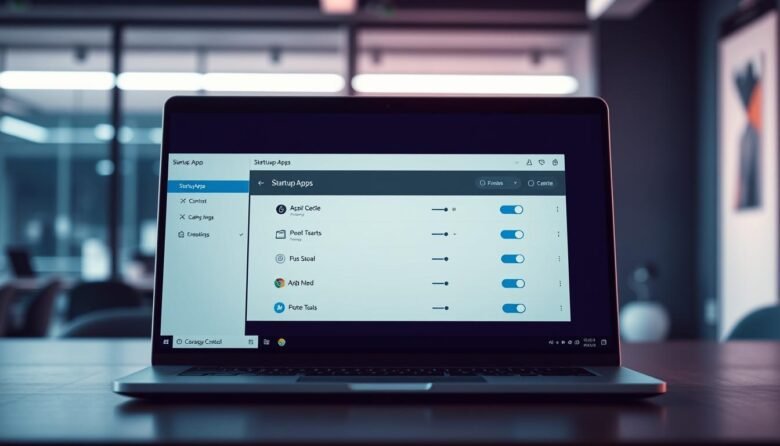
Slow sign-ins and long boot times usually come from programs that launch when Windows starts. These background entries can use CPU, memory, and disk and make your computer feel sluggish right after you sign in.
You can control most items from Settings > Apps > Startup or the Task Manager’s Startup tab. Task Manager also shows Startup impact, which helps you spot heavy hitters that cost time during boot.
This guide gives simple, safe steps to choose which programs run at sign-in, keep essential security tools enabled, and turn off clutter that offers little daily value. We also cover deeper options like the Startup Folder, System Configuration, and quick PowerShell commands for power users.
Key Takeaways
- Use Settings or Task Manager to quickly reduce items that slow boot.
- Check “Startup impact” to prioritize what to disable.
- Keep core security software enabled while trimming nonessential entries.
- Use the Startup Folder or System Configuration for deeper control.
- Follow a simple maintenance routine so your PC stays fast over time.
Why startup programs affect boot time, performance, and security
The list of items that start with Windows defines how fast your PC feels after sign-in. Each entry runs code, claims memory, and can delay services like networking and file sync.
Common high-impact examples include messaging tools such as Skype and Teams, cloud sync clients like OneDrive, automatic updaters from Adobe or Google, and hardware utilities for GPUs or printers. These programs often sit in the background and raise steady resource usage even when you are not interacting with them.
When automatic launch helps
Automatic launch is valuable for essentials: antivirus, backup agents, and accessibility tools. These should be ready at sign-in to protect data and keep the system stable.
When it does more harm than good
Nonessential entries add seconds to the boot process and can prolong the period before your desktop is responsive. Old or unknown programs that launch with elevated rights also increase security exposure and can cause performance issues during heavy usage.
Tip: Prioritize keeping security, trusted backup/sync, and device drivers enabled. Delay or disable items you open only occasionally to reduce the overall impact on boot and daily performance.
Manage startup apps
Tuning which items begin at sign-in can cut seconds from boot and lower resource use. Use a careful, stepwise approach so you never disable critical services by accident.
Best-practice overview for safe disabling
Start small: change one or two entries, then reboot and observe. This helps you spot side effects and undo changes quickly.
Build a short list of must-run items and disable everything else. Use Task Manager’s impact indicator and your own workflow to prioritize what to turn off.
Never disable an unknown entry without a quick web check. Confirm vendor and function so you don’t break background services that keep the system stable.
Which programs to keep enabled
Keep core services such as antivirus, endpoint protection, and any cloud backup you depend on. Also allow hardware drivers or vendor utilities that are required for device function.
Disable nonessential messaging tools, automatic updaters, and utilities you don’t use daily. On laptops, trimming these entries can also help battery life.
Quick methods in Windows 11 and Windows 10: Settings and Task Manager
Quick built-in tools in Windows let you toggle what runs at sign-in in just a few clicks. These methods are safe, reversible, and easy for most users.
Settings path: Open Settings > Apps > Startup and flip the toggle to On or Off for each entry. This is the fastest way to stop unnecessary items from launching after sign-in.
Task Manager method: Right-click the Start button and open Task Manager. Click the Startup tab, select an entry, then right-click to Enable or Disable. The manager view shows publisher, status, and more detail.
Use the startup impact column to prioritize work. Impact labels are None, Not measured, Low, Medium, and High. Focus first on entries marked High to reclaim the most time during boot.
Sort by name, status, or impact to find top offenders. After making changes, restart to confirm results. If something still slows your PC, try the deeper controls covered later.
Deeper Windows controls: Startup Folder, msconfig, and PowerShell
Windows offers folder and command-line options for fine-grained control over what runs after sign-in. Use these when the Settings or Task Manager view does not give the full picture.
Use the Startup Folder for simple adds and removals
Open Run, type shell:appsfolder, and press enter to see installed programs. Then open shell:startup (current user) or shell:common startup (all users) to add or remove shortcuts.
Drag shortcuts from the apps folder into the Startup folder to add items. Delete a shortcut inside the folder to stop that program from launching for that account.
What msconfig does now
System Configuration (msconfig) on modern Windows no longer edits launch entries directly. If you open msconfig it will redirect you to Task Manager’s Startup tab to toggle items there.
List startup programs quickly from the command line
For a fast audit, run Command Prompt and type wmic startup get caption, command to see the program name and command path. Or use PowerShell (Admin): Get-CimInstance Win32_StartupCommand | Select-Object Name, Command, Location.
These command outputs show the name, command, and location so you can spot duplicate updaters or old software. Combine folder cleanup with Task Manager checks for a thorough result.
Advanced caution: Editing Windows Registry startup entries
When Settings and Task Manager miss an entry, the Registry often reveals which programs run at sign-in. Use this area only if other methods did not list the troublesome item.
Registry paths to check (HKCU and HKLM)
Windows keeps many autostart values under these keys:
HKCU\Software\Microsoft\Windows\CurrentVersion\Run (current user).
HKLM\Software\Microsoft\Windows\CurrentVersion\Run (all users) and the 32-bit path HKLM\Software\Wow6432Node\Microsoft\Windows\CurrentVersion\Run.
Backup tips and when to avoid edits
Open Registry Editor with Win+R, type regedit, then press enter. Export any key before you change it so you can restore quickly.
Only delete values you recognize. Removing unknown entries can cause system issues or break programs that depend on them.
Use registry edits as a last resort to manage startup programs or to disable startup programs that reappear. If an entry looks random or keeps returning, run a full scan for malware and review in-app settings or scheduled tasks.
Managing startup on macOS, Android, and Linux
Across macOS, Android, and Linux, you can cut boot time by stopping unneeded items from opening at login. Each system uses slightly different controls, but the idea is the same: keep essential security and sync tools, and disable what you open manually.
macOS: Quick changes in Login Items
On macOS open the Apple menu, go to System Settings > General > Login Items. Remove any app you don’t want to open at login from the list.
Some background services do not appear there. Check an app’s own preferences to turn off its auto-launch if needed.
Android: Control auto launch and battery usage
Open Settings > Apps, then find Battery or Launch Management for the app you want to limit. Toggle off Auto Launch to stop it from starting after boot.
Vendors may label these controls differently, but the goal is lower background usage and faster initial responsiveness.
Linux: GUI and command-line options
On GNOME/Ubuntu use the Startup Applications tool to disable entries. For direct control, list files with ls ~/.config/autostart and remove unwanted items with rm ~/.config/autostart/[program].desktop.
In managed environments use systemd services or crontab to enforce consistent behavior across multiple machines.
Tip: After major updates, revisit these settings—updates can re-enable defaults. Fewer auto-starting programs means a lighter, faster boot on every system.
Troubleshooting sticky startup apps and missing paths
If a program keeps coming back after you disable it, check the program’s own preferences first. Many programs include a built-in “run at sign-in” toggle that re-enables the entry unless you turn it off inside the app.
Open Task Scheduler and inspect the Task Scheduler Library for tasks that launch at logon. Disable or delete unnecessary tasks to stop auto-restores.
In Settings > Apps > Startup, select the info icon when you see “We couldn’t find this app.” That panel shows the registry or file path. If the path is broken, remove invalid shortcuts from shell:startup or repair the program so Windows can resolve the name correctly.
If the info panel points to a Run registry key, back it up and then delete stale values. Watch for generic names or unfamiliar publishers—these can be red flags.
For persistent or suspicious entries, run a full malware scan with Windows Defender or another trusted tool. If normal tools don’t reveal the cause, use Autoruns (Microsoft Sysinternals) for a deep inventory of autostart locations. Tackle one issue at a time and reboot to confirm the boot is clean.
Ongoing maintenance to keep Windows startup fast
Regular checks keep new background entries from quietly slowing your system over time. A short, scheduled review preserves performance and saves time later.
Quarterly audits are the easiest way to stay on top of changes. After new installs or major updates, scan the list of launch items and note any unfamiliar programs. Revisit Task Manager impact ratings; updates can change behavior.
Keep Windows and drivers current. Patches often fix memory leaks and slowdowns that show up right after boot. Use lightweight monitoring tools like Windows Performance Monitor to watch CPU, disk, and network usage for the first few minutes after sign-in.
If you see resource spikes, correlate the timing with your launch list to find the likely program to disable. Document what you change so you can repeat the fix on another computer or roll it back if needed.
Tools and policy
On shared systems, set a minimal launch policy so everyone benefits from better speed. Combine quick GUI checks with command-line audits occasionally to ensure nothing hides outside normal places.
Tip: Keep essential security and backup software enabled, then fine-tune convenience items to balance workflow and boot time. A few minutes each quarter protects long-term performance.
Get your PC booting quickly and keep it that way
A simple routine of quick checks will help you keep your PC responsive every day. Use Settings > Apps > Startup and the Task Manager’s Startup tab to toggle entries, sort by impact, and disable heavy items first.
When needed, clean the Startup folders (shell:startup), run a quick PowerShell or wmic audit, and only edit Run keys in HKCU/HKLM after exporting a backup. Keep antivirus and backup tools enabled so you improve boot speed without sacrificing security.
For stubborn entries check in-app options, Task Scheduler, and the Settings info panel for broken paths. Apply the same steps on macOS, Android, and Linux using their login items and autostart controls.
Revisit this checklist after installs or updates. With consistent steps you’ll cut background load, keep boots fast, and protect your system from unexpected slowdowns and malware.