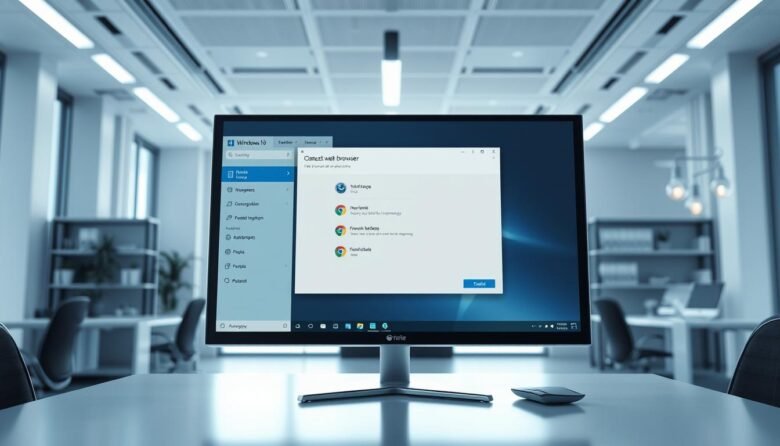
Quick, safe steps can make links open in the app you prefer. This short guide shows how to set Google Chrome or another choice as your default browser using the Start menu and the Settings app.
In Windows 11 you’ll see a prompt like “Make Google Chrome your default browser” with a Set default button and a list of file and link types. In Windows 10 open Default apps and change the Web browser to Chrome or another installed option.
This article gives a friendly, step-by-step walk through the exact menu paths and the one step that applies the setting system-wide. You’ll also get quick tips to pin your choice to the taskbar and to confirm links open in the right web app on your computer.
Key Takeaways
- You can set Chrome or another web browser as the default from Settings > Apps > Default apps.
- Windows 11 shows a Set default button and file-type list for each browser.
- Windows 10 uses the Default apps panel to pick your web browser.
- Pin your chosen app to the taskbar for fast access after you set it.
- Follow the one step in the menu that makes the change apply system-wide.
What “default browser” means and what you need before you start
A default browser is the app your computer uses to open web pages, links, and certain file types such as HTML or PDFs when you click them in email or chat.
Before you try to set a new option, make sure you have downloaded install the web browser you want. If you plan to use Google Chrome, download install it from the official site so the system recognizes it in Settings.
Open Settings later in the guide to set default apps. If the new web browser is not installed, it won’t appear as a selectable option and you can’t complete the setting.
After installing, close the installer and, on windows 11, review each file and link type to confirm everything points to the web browser you prefer. Keep login details handy so bookmarks and sync appear right away.
Change default browser Windows 11: Use Default Apps to set Chrome or another browser
Quick steps make it easy to route links and web files to the app you prefer. Start from the Start menu and open Settings to reach the area that controls which app handles web traffic.
Step-by-step setup
Click Start, open Settings, then go to Apps > Default Apps. In the search box under “Set defaults for applications,” type Google Chrome or your chosen app.
Click the app entry and then click Set default on the prominent button at the top to set default across handlers.
Verify file and link types
After you set default, review the list below the button. Confirm common file types like .htm and .html and protocols such as HTTP and HTTPS point to your chosen browser.
If a type still shows another app, click that type and pick your preferred option from the list to complete the setup.
Optional: pin for fast access
Open Chrome, right‑click its icon on the taskbar, and choose Pin to taskbar. This keeps your chrome default browser one click away for faster browsing.
Switch your default browser in Windows 10 via Settings
Quick setup puts links into the app you prefer. Use the Settings menu to pick which program opens web pages and common file types on your PC.
Step-by-step: Start > Settings > Apps (or System) > Default apps > Web browser
Click Start, open Settings, then go to either System > Default apps (original builds) or Apps > Default apps (Creators Update and later). Scroll to the Web browser row and click the current choice—often Microsoft Edge.
From the small list that appears, pick Google Chrome or any other installed option to set default for links and common web file handlers. If your choice is missing, install the app and return to the menu so it appears in the list.
Optional: Keep your browser handy by pinning it to the taskbar
Open the app you picked, right‑click its taskbar icon, and choose Pin to taskbar. That gives one‑click access and makes it simple to confirm new links open where you expect.
Troubleshooting and tips: When the default won’t stick or options don’t appear
If links keep opening in the wrong app, the fix is often to remap protocols and file types manually. ,
Missing app? If your chosen browser does not appear, install or reinstall it, then reopen Settings > Apps > Default apps. Use Start search to type “Default apps” and open that page quickly.
Map file types and protocols
Open the app entry in Default apps and set handlers for HTTP, HTTPS, .htm, .html and .pdf. Manually mapping each file and protocol forces the system to use your option for those links.
Extra steps when mappings fail
If a link still opens in microsoft edge, revisit the protocol handlers and pick your chosen browser. Sometimes a restart is required; reboot and test the behavior again.
If your PC is managed, policy or security tools can block changes. Contact your admin or temporarily pause protection, set the associations, then re-enable safeguards. As a last resort, create a new user profile to test whether the issue ties to your current window.
You’re all set: Next steps to keep your browsing smooth and secure
You’re all set—here are a few simple steps to keep your web use smooth and secure. Take one quick step at a time and use the Start menu if you need to revisit settings.
Sign into Google Chrome and turn on sync so bookmarks, extensions, and passwords follow you across each computer. This makes your chrome default browser feel the same on phone and PC.
Pin the app to the taskbar and Start for fast access. If you need to set default browser again, open Start > Settings > Apps > Default Apps and follow the menu to set default in a single step.
Keep the app updated and review privacy options to block trackers or clear data on exit. After major updates, double-check the default browser windows settings so links open where you expect from the start.