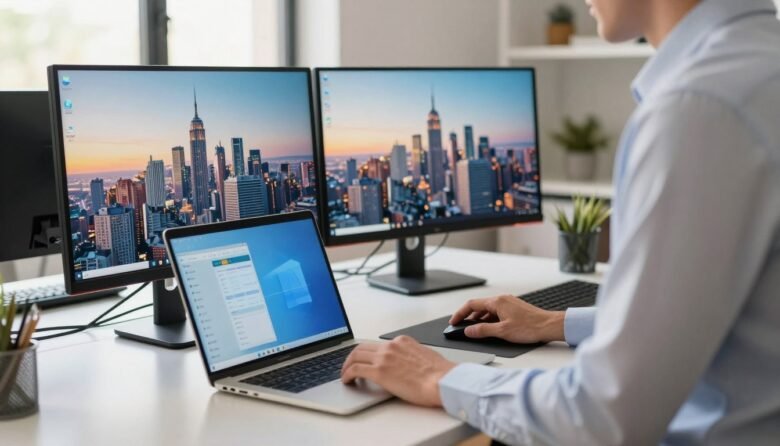
You’ll get a clear, beginner-friendly overview of how to set up a second monitor on Windows laptop in this short intro. It walks you through what you need, the cables to check, and the few clicks inside windows that finish the job.
First, connect the external display with the right cable and power it on. Then open Start > Settings > System > Display and choose Duplicate or Extend. Click Apply and then Keep changes.
You’ll learn what Extend versus Duplicate means for work, school, or gaming. The guide also flags common issues like a black screen, wrong input, or a display not detected and points you to fixes in the article.
Success looks like two displays shown in Windows, smooth mouse movement between screens, and apps opening where you expect. Read on and you’ll finish this setup with confidence.
Why using a second monitor makes everyday Windows work easier
Adding a second display can instantly make everyday tasks feel less crowded and more organized.
The biggest gain is extra usable space. With dual monitors you can keep reference material visible while you work. That beats constant alt-tabbing and reduces mistakes.
More room for multitasking
One screen holds communication tools like Slack, Teams, or email. The other screen holds your main work — docs, code, or spreadsheets.
Better focus with a dedicated display
Assign one display per task. For example, run video calls on the external display and keep notes on your laptop screen. That separation cuts distractions.
Real-world two monitors workflows
- Excel on one display while a browser dashboard stays open on the other — quick checks without window stacking.
- Photoshop on one screen with assets and the file explorer on the second for faster edits.
- Use Extend display to drag windows across screens; choose Duplicate only for presentations.
Expect a few tweaks in display settings, like scaling, if sizes differ. These minor changes keep the workflow smooth.
Make sure your laptop and graphics card support a second monitor
A simple port and GPU check tells you whether your machine can run multiple displays without surprises. Start by looking for a visible video output port on your computer. Typical ports include HDMI, DisplayPort, and USB-C.
Check the physical ports
Inspect your desktop or laptop for a free output slot. Laptops often have a single HDMI or USB-C, while desktops usually show several video output connectors on the tower.
Know what “available outputs” means
Available outputs are the working ports you can plug into. Your monitor needs a matching input. If the ports don’t match, an adapter or dock can bridge them.
Understand graphics limits
Windows may offer multiple display options, but the graphics card and its ports decide how many monitors will actually run. Check your GPU specs if you plan more than two displays.
- Don’t confuse USB-A with USB-C; only certain USB-C ports carry video output.
- If there’s only one output slot, consider a docking station or a multi-port adapter.
- Confirm your computer’s card specs when adding extra monitors later.
Pick the right connection: HDMI, DisplayPort, USB-C, or VGA
Picking the right video connection keeps your display crisp and your setup simple. Most modern computers and monitors use hdmi or displayport. Older screens may use vga, the colored trapezoid connector that delivers analog video.
Matching your output to the monitor input
Always match the laptop output with the monitor input when possible. A same-port cable is the simplest choice and offers the most reliable signal.
When you need an adapter or powered adapter
Use an adapter cable such as USB-C to hdmi or USB-C to displayport when ports differ. If converting vga to hdmi, choose a powered adapter unit; analog-to-digital conversion often needs external power.
HDMI vs DisplayPort: practical choice
Both hdmi and displayport support high resolutions. Pick the cable that matches your ports and the resolution or refresh rate you want. For gaming or high refresh rates, displayport often has the edge. For broad compatibility, hdmi is common.
Older VGA monitors
Expect lower image quality with vga. Confirm the adapter supports the correct direction (computer output toward monitor input) before buying.
- Confirm port shapes and labels on both devices.
- Check the monitor input and buy the right cable length.
- Choose a powered adapter for vga-to-hdmi conversions.
Set up your desk space and place your monitors for comfort
A good monitor setup starts before any cables are plugged in. Take a moment to plan the space on your desk so cables reach and the screens sit where you will actually look most of the time.
Positioning the second screen next to your main display
Place your external monitor beside your primary screen for a natural workflow. Keep the main work area directly in front of you and the one monitor you check less often slightly angled.
Mounts, stands, and monitor arms that keep your setup tidy
A monitor arm or adjustable stand frees desk space and makes alignment simple. Choose an arm when you want more clear surface area or easier height tuning for both monitors.
- Align top edges so your eyes rest near the top third of the screen for less neck strain.
- Route cables behind the desk and leave slack at hinges or arms so cords never pull on ports.
- If you use one monitor more, center that screen and put the secondary screen slightly to the side.
Ergonomics matter: a tidy, well-planned layout makes you use both monitors consistently instead of ignoring the extra screen. Small adjustments save strain and improve productivity over time.
Connect the second monitor and power it on
Start by connecting the video cable: plug one end into your computer’s video output slot and the other into the monitor input. Then power the monitor so the screen can wake and Windows can detect the display.
Plug the cable into the correct slots
Match the cable ends to the correct output and input ports. Use the same port type when possible (HDMI to HDMI, DisplayPort to DisplayPort) so you avoid adapter issues.
Select the input/source on the screen
If the monitor stays blank, open the monitor’s on-screen menu or press its input button or joystick. Choose the right input (HDMI1, HDMI2, DP) until the image appears.
Black-screen checklist
- Re-seat both ends of the cable and confirm the power indicator is lit.
- Try a different cable or port if available.
- Confirm any adapter is powered — many active adapters need a separate power lead.
- Restart your computer if the display still won’t show.
Once the external display shows an image, proceed in Windows to choose Extend or Duplicate and arrange screens. If detection fails, repeat the checklist and make sure connections are firm.
Open Windows display settings to start your monitor setup
Open the Windows display controls to begin arranging screens and confirming connections. This is where you tell Windows which screens are active and where they sit in your workspace.
Find the right page in Settings
Go to Start > Settings > System > Display to land on the display settings page. The path leads you straight to the preview area with numbered rectangles for each detected screen.
Use Identify to match numbers with physical screens
Click Identify and big numbers appear on each physical display. Match those numbers to the preview boxes so you know which thumbnail is screen 1 and which is screen 2.
Detect when a display is missing
If the second monitor does not show, click Detect. Windows will scan for connected displays and list any new screens it finds.
- If Detect finds the screen but it stays black, check cables, power, and the monitor input/source.
- Use the multiple displays dropdown and Apply when you choose Extend or Duplicate.
- Windows often auto-configures a basic layout, but these display settings are where you make it comfortable and consistent.
how to set up a second monitor on Windows laptop with the best display mode
Choosing the right display option makes your dual monitors act like a single, efficient workspace. In Display settings, use the Multiple displays menu and pick the mode that fits the task at hand.
Extend display for uninterrupted productivity
Select Extend these displays when you want one large desktop. Drag windows freely, run separate apps on each screen, and enjoy true multitasking with dual monitors.
Duplicate these displays for sharing or teaching
Choose Duplicate these displays when you need the same image on both screens. This is ideal for presentations, demos, or any screen sharing where the audience must see exactly what you see.
Show only on one monitor for focus or travel
Pick Show only on 1 or Show only on 2 to use just one screen. Use this when traveling, conserving power, or focusing with one display active.
Set your main display so apps open where you expect
Click the monitor you want as primary, then choose Make this my main display. New windows, the taskbar, and the Start menu will open there. If that option is grayed out, the selected screen is already the main display.
- Test the mode by opening two apps and placing one on each screen.
- Switch modes quickly if your task changes—Windows remembers choices per setup.
- Use Extend for daily work, Duplicate for sharing, Show only on 1/2 for focus.
Arrange your displays so the mouse moves smoothly between screens
Arrange the displays in Windows so the on-screen layout matches your desk. Open Display settings and look for the numbered rectangles that represent your monitors. Drag each rectangle left, right, up, or down until the preview mirrors the real world.
Drag and align monitor rectangles to match your physical layout
Move the rectangles so left/right placement matches how your monitors sit. This simple step keeps the cursor path intuitive and reduces time lost hunting for the pointer.
Fix cursor “jumping” by aligning edges and heights
If the cursor jumps or gets stuck, align the top or bottom edges of the rectangles. Different monitor heights or sizes cause invisible barriers. Nudge the rectangles until the cursor crosses where the two screens meet.
- Slowly move the mouse across the boundary as a practical test.
- Adjust until the cursor crosses where the physical screens touch.
- Revisit settings anytime you change a stand or monitor location.
When the displays match reality, the cursor flows naturally. That small improvement makes working with two monitors feel like one continuous workspace and boosts your productivity.
Fine-tune resolution, scaling, orientation, and refresh rate
Small tweaks in resolution and refresh rate can make dual displays feel sharp and comfortable.
Select each monitor in Display settings and choose the Recommended resolution. Using the wrong option can make text blurry or leave a screen black and unresponsive. If a change causes a blank view, wait for Windows to revert or pick the previous setting when prompted.
Adjust scale for mixed sizes
For a small laptop screen next to a large external display, increase scaling on the smaller device so UI elements match visually. Keep fonts readable and app layouts consistent across both screens.
Rotate for portrait work
Rotate one monitor into portrait when reading long documents, writing, or coding. Use the Orientation control in settings and confirm the rotation works before saving.
Check refresh rate and graphics limits
If a screen flickers, inspect the refresh rate in advanced display settings. Higher refresh rates need compatible cables, ports, and graphics hardware. Lowering the rate can stop flicker and ease eye strain.
- Select each monitor and pick Recommended resolution.
- Adjust Scale if one screen looks much larger or smaller.
- Rotate a monitor for portrait use and test before committing.
- Check refresh rate; change only within your graphics and cable limits.
Save changes, test your dual monitor setup, and keep it running smoothly
Confirming and saving your display choices prevents surprises and keeps your desktop steady. In Settings, click Apply and then select Keep changes so the layout and mode do not revert.
Test the setup: open two apps, drag one to the secondary screen, move the mouse across both displays, and check which desktop holds the taskbar and main windows. This quick routine verifies that the second monitor works as expected.
For daily stability, plug the same hdmi cable each time, avoid sharp bends, and keep ports clean. If a screen loses signal, check power, reseat cables, confirm the correct input, then return to Settings > System > Display and click Detect. Restart your computer if needed.
Most modern laptops handle an extra display well, but very high resolutions or refresh rates may reduce performance. Keep your desk layout consistent so Windows recognizes the arrangement and saves you time.

Ava Kensington is a tech writer who believes technology should make life easier, not more complicated. She created MoodTechs to help everyday users get the most out of their devices with clear, step-by-step guides — no jargon, no fluff. From fixing a stubborn printer to locking down your privacy settings, Ava breaks it down so anyone can follow along.