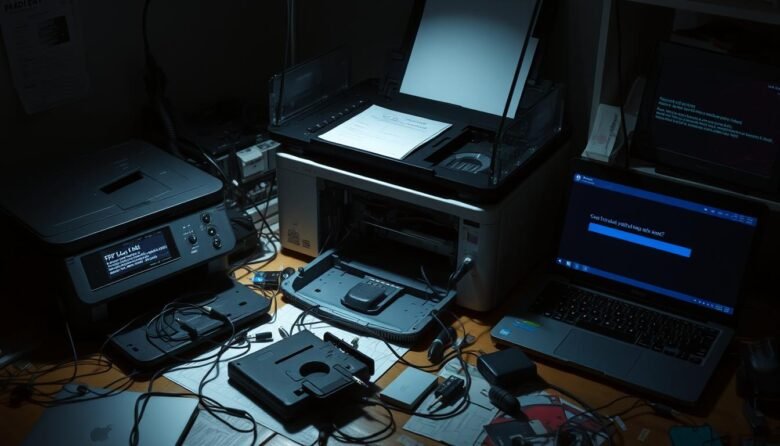
Can’t get your printer to respond? This short guide walks you through friendly, tested steps to get back to print fast without guesswork. Start with simple checks, then move into Windows settings and deeper troubleshooting only if needed.
We cover both wired and wireless basics, including loose cable checks and how to confirm your devices see the unit. You’ll learn when a quick power cycle — turn printer off, unplug, wait seconds, plug in and reboot — solves the issue instantly.
We also show where to click in Windows (Printers & scanners, Device Manager, Services), when to restart the print spooler or spooler service, and how to update drivers from Device Manager or the manufacturer website. If a network quirk or interference is the problem, this article explains common pitfalls and when to contact your printer manufacturer for support.
Key Takeaways
- Begin with simple checks: cables, power, and basic network visibility.
- Use Windows tools: Printers & scanners, Device Manager, and the troubleshooter.
- Try a power cycle (turn printer off, unplug, wait seconds, restart) before deeper steps.
- Restart the print spooler or spooler service when jobs stall.
- Update drivers via Device Manager or the manufacturer website as needed.
- Watch for network interference and router firmware behaviors that affect connectivity.
- Contact HP, Canon, Epson, or Xerox support when hardware or persistent errors remain.
Spot the symptoms: how to tell it’s a connection problem
Look for clear Windows signals that point to a network or settings problem. If the printer shows as “Offline” in Printers & scanners or does not appear at all, that is a strong sign of a connectivity issue.
Stalled jobs in the print queue or documents that never print usually mean the path between your PC and device is broken, not that the hardware is faulty. When a test page won’t print but the unit powers on with no error lights, suspect the connection layer.
Make sure other devices on your network can reach the internet. If multiple devices lose access, the network itself may be the cause rather than a single printer issue.
A device that appears and disappears from your list suggests unstable connectivity. If you can print over USB but not Wi‑Fi, that contrast also points to a network connection problem.
Keep a short list of symptoms and recent changes — router reboots, moves, or new SSIDs — so you can map them to the right troubleshooting steps.
Printer connection fix: quick checks before you dive deeper
Begin by verifying a few basic items that commonly stop printing at home or in the office. These quick steps help you spot simple problems without lengthy troubleshooting.
Make sure the printer is powered on and shows no error lights
Check power lights and the display. If an error appears, resolve that first; many network checks fail while an alert is active.
Run a test page from the device menu if available. A local print proves the hardware is OK and narrows the issue to the network or drivers.
Confirm your device and printer are on the same network
Verify both are on the same SSID and that Wi‑Fi or Airplane Mode isn’t disabled. If you have a guest SSID, try the main network to avoid client isolation.
For wired setups, reseat the Ethernet or usb cable and check the link light. Try a direct USB cable briefly — if it prints, the network needs attention.
Check printer connected: wired vs. wireless basics
Begin with the right type of check for your setup. Decide if the unit is on a wired cable or on Wi‑Fi, then run a short checklist to narrow the problem fast.
Wired setup: reseat cables and inspect ports
For wired setups, firmly reseat the Ethernet or usb cable until it clicks. Look for link or activity lights on both ends.
Inspect ports for debris or bent pins. A dusty Ethernet jack or a damaged USB pin can block a steady data path.
Wireless setup: confirm SSID, password, and signal
On wireless models, verify the exact SSID and password shown on the device panel or app. Confirm signal strength is at least “Good.”
If the unit moved farther from the router, test it closer to rule out a weak signal. Prefer 2.4 GHz for better range when possible.
See the device in Windows: confirm it appears
Open Printers & scanners to see if the unit is listed. If it’s missing, Windows may not have completed discovery or installation.
Make sure your devices and the unit are on the same network segment; guest SSIDs or client isolation can prevent discovery. If the device appears but shows “Offline,” try bringing it Online before removing and re‑adding.
Use built‑in Windows tools to diagnose and fix
Windows includes tools that quickly spot common printing problems and guide you through straightforward repairs. Start at the Start menu: search “Printers” and open Printers & scanners to see installed devices.
From the device list, select your printer and click Run the troubleshooter. Follow the prompts; the tool checks drivers, the print spooler, and basic network access. Let it apply recommended changes.
Open the print queue to view pending jobs. If documents are stalled, cancel all jobs to clear the pipeline. A cleared queue often restores normal printing immediately.
Make sure the correct device is set as the default. After adding or replacing hardware, Windows may send jobs to the wrong unit. Set your default and send a test page.
If the device shows “Offline,” use the option in Settings to change its status to “Online” and try a simple print. If issues continue, the troubleshooter may suggest updating drivers or restarting the print spooler.
Run a power cycle: turn printer off, unplug, wait seconds, restart
A quick power cycle often clears temporary glitches that block printing and network discovery.
Turn the device off, then turn printer unplug the power cable from the wall. Wait 30–60 seconds to let capacitors fully discharge. This pause gives electronics time to reset.
After the wait, plug the unit back in and turn printer on. Give it time to reach Ready before sending a job. Wait seconds for any network services to reappear on the router.
Why this helps: Power cycling clears faults in memory and networking modules. It often restores discovery without changing settings and is faster than reinstalling software.
If you use Ethernet, reseat the cable while power is off to ensure a solid physical link. Make sure the device you print from is awake and reconnected to Wi‑Fi after the restart.
Send a small test page first. If the problem returns quickly, note timing to decide whether to restart the spooler or update drivers next.
Restart the Print Spooler service to resolve stuck jobs
A quick restart of the Windows print spooler can be the fastest way to unstick queued jobs and get devices printing again.
What the print spooler does: it queues print tasks and hands them to the device. When that service stalls, jobs hang and printers may appear offline even though the network and hardware are fine.
Steps to restart the spooler service:
In the taskbar search, type “services” and open Services. Scroll to Print Spooler, right‑click it, and choose Restart. This clears the queue without rebooting the whole system.
After the restart, reopen the print queue to confirm it’s empty and send a small test print. If the unit reconnects immediately, the problem likely centered on the spooler rather than network settings or drivers.
If the troubleshooter reported queue errors or restarting fails, consider updating drivers or checking third‑party software that may interfere with the spooler service. Note: you need admin rights to restart services; otherwise perform a full system reboot and retry.
Remove and re‑add the printer to refresh connections
Removing the device and letting Windows reinstall it often clears stale settings and restores discovery. This is a quick, safe step that rebuilds driver bindings and ports without deep changes.
Remove device from Printers & scanners
Open Settings > Printers & scanners, select the problem device, and click Remove. This clears old drivers and any ghost ports that can block printing.
If you recently restarted the print spooler, removing the device next can cement a clean queue and port state.
Click Add a printer or scanner and reconnect
Click Add a printer or scanner and wait while Windows searches. When it appears in the list, choose Add device to rebuild the setup.
If Windows does not see the unit automatically, use the option to add it manually by IP or via USB. For USB setups, try a different usb cable or port so Windows can enumerate the device properly.
Make sure the unit is powered on and on the same network before re‑adding. When re‑adding over Wi‑Fi, stand closer to the router for the initial handshake, then move the printer back once the listing shows.
Quick tip: Note any changes you make. If the problem repeats after sleep or power saving, you can adjust those settings or share the sequence with support.
Update printer drivers and firmware the right way
A careful driver and firmware update can restore reliable printing without reinstalling hardware. Keeping software current reduces compatibility problems and often fixes jobs that stall or disappear.
Update via Device Manager on Windows
Search “device manager,” open it, right‑click your printer device, and choose Update Driver. Follow the prompts to let Windows search automatically or point to files you downloaded.
Download the latest version from the manufacturer website
If Device Manager finds nothing, visit the printer manufacturer website and search your exact model. Download drivers or firmware matched to your system version (for example, Windows 11 64‑bit).
When to update the system versus the device
If printing stopped after a Windows update, try rolling back the driver or checking the printer manufacturer for a compatible release. Manage firmware updates on the unit and router carefully; auto‑updates can sometimes cause disconnects.
Practical steps: schedule firmware installs when downtime is OK, record the version and date, then restart both PC and printer and run a small test page. If problems persist, recheck the print spooler and your network before replacing hardware.
Network connection pitfalls: Wi‑Fi bands, interference, and router settings
Small changes in a wireless environment can cause sudden loss of network visibility for printing devices. Band choice, nearby smart home radios, and router updates all affect how reliably your unit stays reachable.
2.4 GHz vs. 5 GHz: why many devices prefer 2.4 GHz
Many printers are optimized for 2.4 GHz because it offers longer range and better wall penetration than 5 GHz. If your router separates bands, put the unit on 2.4 GHz and keep your computer on the same SSID to aid discovery.
Smart home interference: thermostats, speakers, and TVs
Smart gadgets can steal radio resources. In one Windows 11 setup using a TP‑Link AX3000 and a Brother Wi‑Fi unit, a Honeywell thermostat disrupted Sonos, a Sony TV, and the printer until its Wi‑Fi was disabled.
Temporarily turn off nonessential devices to spot interference. This helps isolate what causes random drop‑offs.
Router auto‑updates and DHCP leases: when a restart or static IP helps
Router or unit auto‑updates can change behavior mid‑day. A quick router restart often restores network service if devices go offline after an update.
Consider assigning a DHCP reservation or a static IP so Windows can find the unit consistently. Also make sure client/AP isolation is off for the SSID your device uses.
Make a short list of recent firmware or device changes and test printing from multiple devices after adjustments to confirm stability.
When to call support: manufacturer and MSP help
If local steps don’t solve the issue, official support and managed IT teams can speed diagnosis and restore service.
Contact the printer manufacturer through their official channels when the problem persists. HP Printer Support, Canon Support Center, Xerox Technical Support, and Epson Printer Support offer model-specific diagnostics and firmware that often resolve stubborn faults.
Use official support channels
Before you call, make sure you have the model, serial number, driver version, and a short timeline of the steps you tried. This speeds troubleshooting and helps the support agent identify known issues for your device.
How an MSP can help
For businesses, a Managed Service Provider is an efficient option. MSPs can remotely check device logs, evaluate network health, standardize drivers, and coordinate with your ISP or router vendor.
Practical tips: ask about warranty repairs, request ticket numbers, and document the recommended resolution. If the device is mission‑critical, discuss temporary USB printing or a backup printer while the vendor implements a permanent solution.
Get back to printing now: a simple sequence to try first
Try these step-by-step actions to restore normal printing without guesswork.
Make sure the printer is powered, shows Ready, and your devices share the same SSID so the printer connected path is valid.
Open Settings → Printers & scanners, run the troubleshooter, clear the print queue, set the device as default, and switch it from Offline to Online. Send a small test print.
Turn printer off, unplug the power, wait seconds (30–60), plug back in, and turn on. If jobs still stall, restart the print spooler (spooler service) in Services.
Remove and re‑add the device, then update drivers via Device Manager or the manufacturer site. If Wi‑Fi drops continue, reboot the router or assign a static IP. If the problem persists, document your steps and contact the printer manufacturer or your MSP.
FAQ
What quick checks should I do first when my printer is not connecting?
How can I tell if this is a network problem or a local device issue?
What should I do for wired vs wireless setups?
Why doesn’t my computer see the printer in Printers & scanners?
How do I use Windows tools to diagnose the problem?
What’s the recommended power‑cycle sequence?
When should I restart the Print Spooler service?
How do I remove and re‑add the machine safely?
How should I update drivers and firmware?
What network settings commonly cause issues?
When is it time to contact manufacturer support or an MSP?
What simple sequence should I try first to get back to printing fast?

Ava Kensington is a tech writer who believes technology should make life easier, not more complicated. She created MoodTechs to help everyday users get the most out of their devices with clear, step-by-step guides — no jargon, no fluff. From fixing a stubborn printer to locking down your privacy settings, Ava breaks it down so anyone can follow along.